.png?height=120&name=B%20Unit%20Logo%20(1).png)
This guide will walk you through the process of adding new drivers and how to view their individual activity.
Contents:
- Drivers Screen
- All Drivers & Vehicles
- Add Driver
- Add Vehicle
- Driver List
- Driver Details
- Session Details
1. Drivers Screen
From the side menu of the Fuuse web portal, click "Drivers" to open that section.

2. All Drivers & Vehicles
On the All drivers / vehicles screen, click the "Add Driver / Vehicle" button.

3. Add Driver
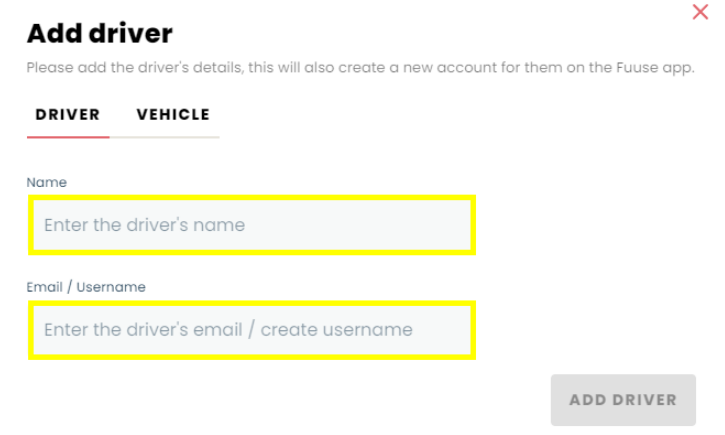
A small modal will open with two tabs that allow you to enter your driver and vehicle information.
On the "Driver" tab (open by default), you can enter the full name of your new driver in the box provided under "Name".
Enter the drivers email address under "Email / Username". This will also serve as the drivers username when logging in to the account.
4. Add Vehicle
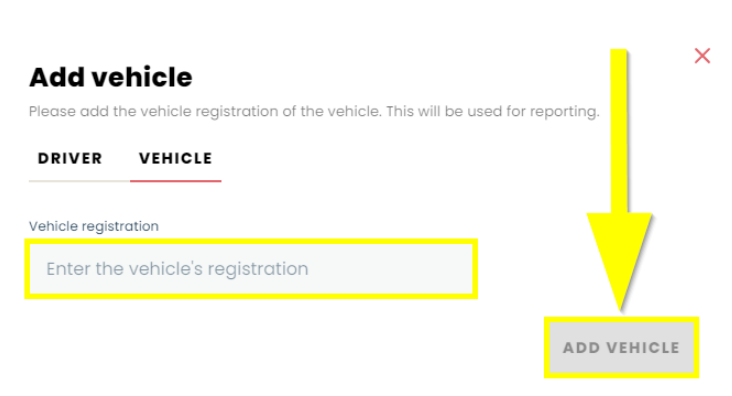
Switching to the vehicle tab allows you to add a vehicle by inputting it's registration number in the box provided. This step is optional and is only used for reporting purposes.
Once you have finished adding the details of your driver / vehicle, click the "Add Vehicle" button to save your choices.
5. Driver List
After saving your new driver, you will be returned to the driver / vehicle list. All drivers previously created will be displayed here in a paginated view along with your new addition.
If you have a large amount of drivers and wish to find a specific one, use the search bar at the top of the list. Part or all of a drivers name or email address can be searched for.
To see more details about a specific driver, click the "See Details" button next to the driver in question.

6. Driver Details
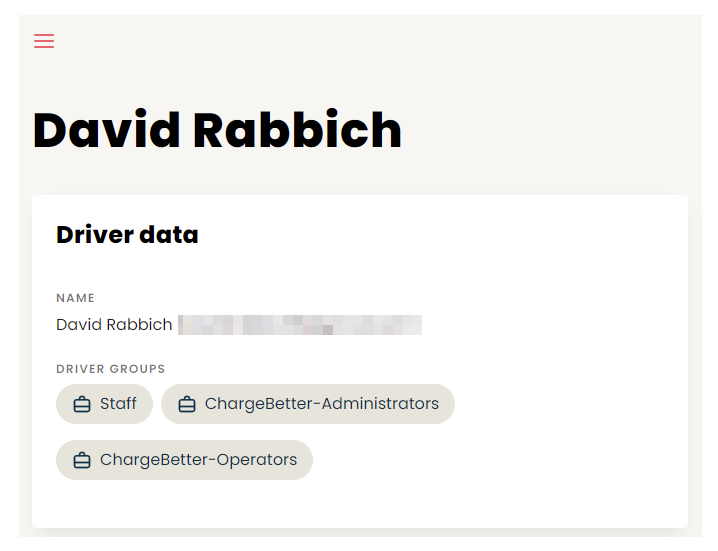
The driver details screen is split into two sections. The first part displays the drivers name, their email address (pixelated in the example below) and any driver groups they have been assigned to.
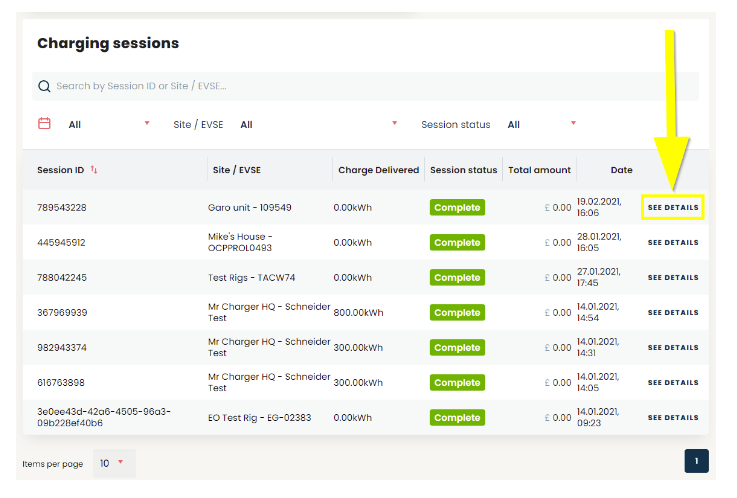
The second section gives a breakdown of the drivers past charging sessions. This is exactly like the charging log section, but the information is specific to this one driver.
The search bar at the top allows you to find specific sessions if needed by searching information such as the session ID, the site or EVSE name etc.
Click the "See Details" button to drill into more specific data and functionality about that particular charging session.
7. Session Details
The session details screen dives deeper into the in's and out's of that particular charging session. Information available here includes:
- Session type
- Tariff used
- kWh fee
- Time fee
- Connection fee
- Vehicle connection time
- Charge start time
- Vehicle disconnection time
You will find some generic information, such as total amount cost and the drivers details which was also displayed in previous sections.
If the driver has reported and logged any issues relating to this charge session, they will be displayed in the bottom right in the "Issues and incidents" section.
Additionally, clicking the "Actions" button will present the "Unlock connector" function. This can be used to manually release the connector if a charger fails to automatically release after a session has ended.
